> ## Documentation Index
> Fetch the complete documentation index at: https://docs.transparencyhubnetwork.ai/llms.txt
> Use this file to discover all available pages before exploring further.
# Meeting Providers
> Connect Google Meet, Zoom, or Microsoft Teams for automated meeting recording and AI minutes.
## Overview
Transparency Hub Network integrates with video conferencing platforms to automatically:
* Join and record meetings via a bot ("Transparency Hub Notetaker")
* Generate transcripts
* Create AI-powered meeting minutes
## Meeting Integrations Settings
Navigate to **Settings → Meeting Integrations** to connect your meeting providers.
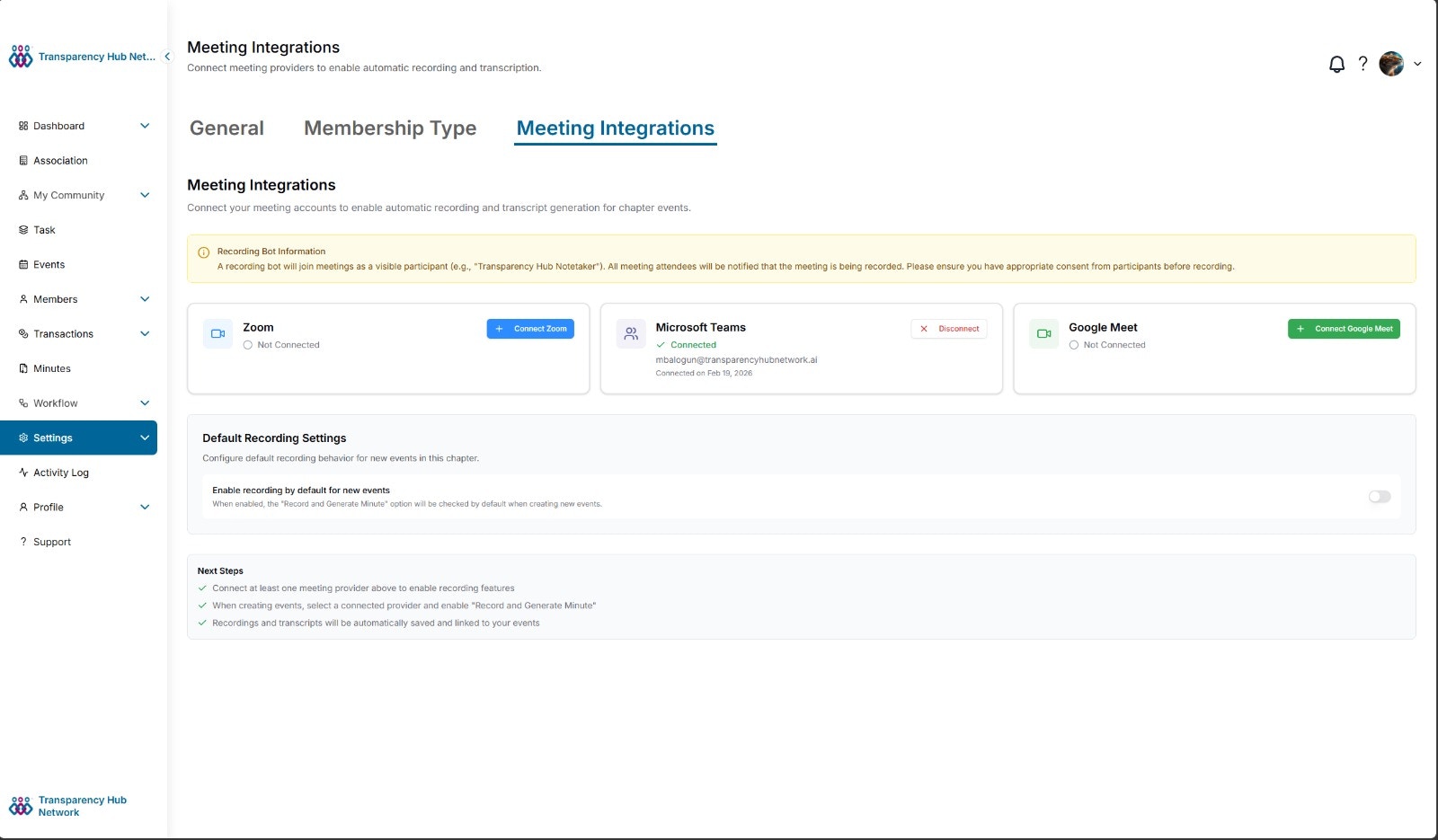 Each provider card shows its connection status. Once connected, the provider's email and connection date are displayed.
## Supported Providers
| Provider | Status | OAuth Required |
| ------------------- | ----------- | ----------------------------- |
| **Google Meet** | ✅ Supported | Yes |
| **Zoom** | ✅ Supported | Yes (managed by Attendee.dev) |
| **Microsoft Teams** | ✅ Supported | Yes |
## Google Meet Setup
Go to **Settings → Meeting Integrations**.
Click **+ Connect Google Meet** on the Google Meet card. You'll be redirected to Google's consent screen.
Sign in with your Google account and grant the requested permissions.
You'll be redirected back to settings with a success confirmation. Your Google email and connection date will appear on the card.
## Zoom Setup
Go to **Settings → Meeting Integrations**.
Click **+ Connect Zoom** on the Zoom card. You'll be redirected to Zoom's authorization page.
Sign in with your Zoom account and approve access.
Zoom tokens are managed securely by our integration partner. We don't store your Zoom credentials directly.
## Microsoft Teams Setup
Go to **Settings → Meeting Integrations**.
Click **Connect** on the Microsoft Teams card. You'll be redirected to Microsoft's consent screen.
Sign in with your Microsoft account and approve access.
Once connected, your Microsoft email and connection date will appear on the card.
## Default Recording Settings
You can enable recording by default for all new events in a chapter:
1. Scroll to **Default Recording Settings** on the Meeting Integrations page
2. Toggle **Enable recording by default for new events**
3. When enabled, the "Record and Generate Minute" option will be checked by default when creating new events
## How Recording Works
Create an event with a meeting link (Google Meet, Zoom, or Teams) and enable **Record and Generate Minute**.
A recording bot is automatically scheduled to join the meeting at the event's start time.
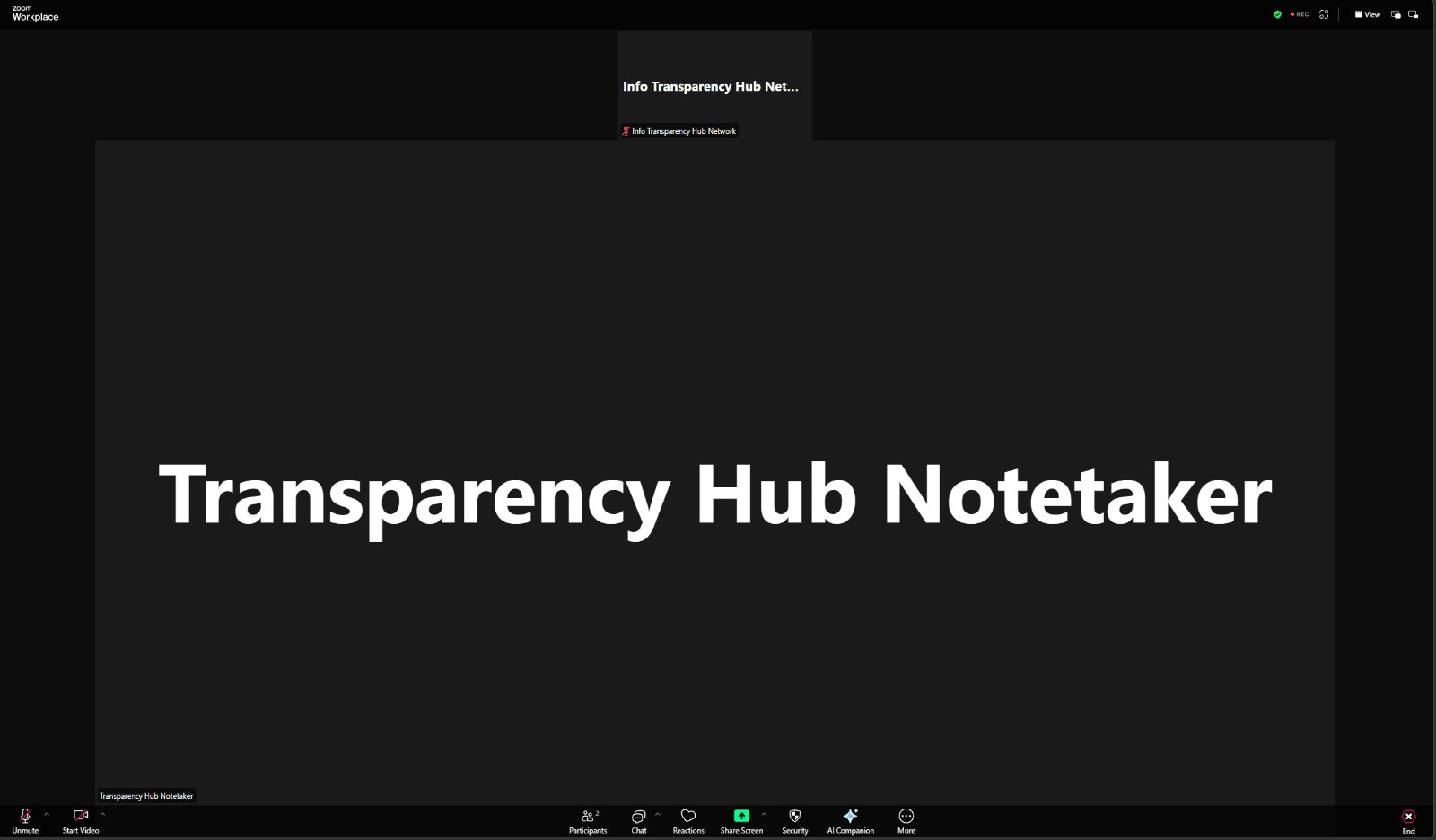
**Transparency Hub Notetaker** joins the meeting as a visible participant and begins recording.
Each provider card shows its connection status. Once connected, the provider's email and connection date are displayed.
## Supported Providers
| Provider | Status | OAuth Required |
| ------------------- | ----------- | ----------------------------- |
| **Google Meet** | ✅ Supported | Yes |
| **Zoom** | ✅ Supported | Yes (managed by Attendee.dev) |
| **Microsoft Teams** | ✅ Supported | Yes |
## Google Meet Setup
Go to **Settings → Meeting Integrations**.
Click **+ Connect Google Meet** on the Google Meet card. You'll be redirected to Google's consent screen.
Sign in with your Google account and grant the requested permissions.
You'll be redirected back to settings with a success confirmation. Your Google email and connection date will appear on the card.
## Zoom Setup
Go to **Settings → Meeting Integrations**.
Click **+ Connect Zoom** on the Zoom card. You'll be redirected to Zoom's authorization page.
Sign in with your Zoom account and approve access.
Zoom tokens are managed securely by our integration partner. We don't store your Zoom credentials directly.
## Microsoft Teams Setup
Go to **Settings → Meeting Integrations**.
Click **Connect** on the Microsoft Teams card. You'll be redirected to Microsoft's consent screen.
Sign in with your Microsoft account and approve access.
Once connected, your Microsoft email and connection date will appear on the card.
## Default Recording Settings
You can enable recording by default for all new events in a chapter:
1. Scroll to **Default Recording Settings** on the Meeting Integrations page
2. Toggle **Enable recording by default for new events**
3. When enabled, the "Record and Generate Minute" option will be checked by default when creating new events
## How Recording Works
Create an event with a meeting link (Google Meet, Zoom, or Teams) and enable **Record and Generate Minute**.
A recording bot is automatically scheduled to join the meeting at the event's start time.
**Transparency Hub Notetaker** joins the meeting as a visible participant and begins recording.
 After the meeting ends, the recording and transcript are processed by AI to generate formatted meeting minutes.
Minutes appear on the event's detail page. See [Meeting Minutes](/platform/meeting-minutes) for details.
A recording bot will join meetings as a visible participant (e.g., "Transparency Hub Notetaker"). All meeting attendees will be notified that the meeting is being recorded. Please ensure you have appropriate consent from participants before recording.
## Next Steps
After connecting at least one provider:
1. ✅ Connect at least one meeting provider to enable recording features
2. ✅ When creating events, select a connected provider and enable "Record and Generate Minute"
3. ✅ Recordings and transcripts will be automatically saved and linked to your events
## Disconnecting a Provider
Go to **Settings → Meeting Integrations**, click **Disconnect** on the provider card. This removes the provider connection from your chapter.
### Zoom — Full Deauthorization
When you disconnect Zoom from Transparency Hub, we automatically revoke the OAuth access token so our app no longer has access to your Zoom account. No further action is needed on your part.
If you prefer, you can also remove the app directly from your Zoom account:
Visit the [Zoom App Marketplace — Installed Apps](https://marketplace.zoom.us/user/installed) page.
Locate **Transparency Hub Network** in your list of installed apps.
Click **Remove** to fully deauthorize the app from your Zoom account.
Either method — disconnecting from Transparency Hub or removing from Zoom — fully revokes our access. When you disconnect from our app, we call Zoom's token revocation endpoint automatically. When you remove from Zoom's side, Zoom notifies us and we clean up the connection on our end.
### Google Meet & Microsoft Teams
When you disconnect Google Meet or Microsoft Teams from Transparency Hub, the stored OAuth credentials are removed from our system. You can also revoke access from your Google or Microsoft account settings:
* **Google:** Go to [Google Account → Security → Third-party apps](https://myaccount.google.com/permissions) and remove Transparency Hub Network.
* **Microsoft:** Go to [Microsoft Account → Privacy → Apps and services](https://account.live.com/consent/Manage) and remove Transparency Hub Network.
After the meeting ends, the recording and transcript are processed by AI to generate formatted meeting minutes.
Minutes appear on the event's detail page. See [Meeting Minutes](/platform/meeting-minutes) for details.
A recording bot will join meetings as a visible participant (e.g., "Transparency Hub Notetaker"). All meeting attendees will be notified that the meeting is being recorded. Please ensure you have appropriate consent from participants before recording.
## Next Steps
After connecting at least one provider:
1. ✅ Connect at least one meeting provider to enable recording features
2. ✅ When creating events, select a connected provider and enable "Record and Generate Minute"
3. ✅ Recordings and transcripts will be automatically saved and linked to your events
## Disconnecting a Provider
Go to **Settings → Meeting Integrations**, click **Disconnect** on the provider card. This removes the provider connection from your chapter.
### Zoom — Full Deauthorization
When you disconnect Zoom from Transparency Hub, we automatically revoke the OAuth access token so our app no longer has access to your Zoom account. No further action is needed on your part.
If you prefer, you can also remove the app directly from your Zoom account:
Visit the [Zoom App Marketplace — Installed Apps](https://marketplace.zoom.us/user/installed) page.
Locate **Transparency Hub Network** in your list of installed apps.
Click **Remove** to fully deauthorize the app from your Zoom account.
Either method — disconnecting from Transparency Hub or removing from Zoom — fully revokes our access. When you disconnect from our app, we call Zoom's token revocation endpoint automatically. When you remove from Zoom's side, Zoom notifies us and we clean up the connection on our end.
### Google Meet & Microsoft Teams
When you disconnect Google Meet or Microsoft Teams from Transparency Hub, the stored OAuth credentials are removed from our system. You can also revoke access from your Google or Microsoft account settings:
* **Google:** Go to [Google Account → Security → Third-party apps](https://myaccount.google.com/permissions) and remove Transparency Hub Network.
* **Microsoft:** Go to [Microsoft Account → Privacy → Apps and services](https://account.live.com/consent/Manage) and remove Transparency Hub Network.