> ## Documentation Index
> Fetch the complete documentation index at: https://docs.transparencyhubnetwork.ai/llms.txt
> Use this file to discover all available pages before exploring further.
# Meeting Minutes
> AI-generated meeting minutes from recorded meetings
# Meeting Minutes
When an event is recorded, Transparency Hub Network automatically generates meeting minutes using AI — saving hours of manual note-taking.
## How It Works
First, connect at least one meeting provider. Go to **Settings → Meeting Integrations** and click **Connect** on Google Meet, Zoom, or Microsoft Teams.
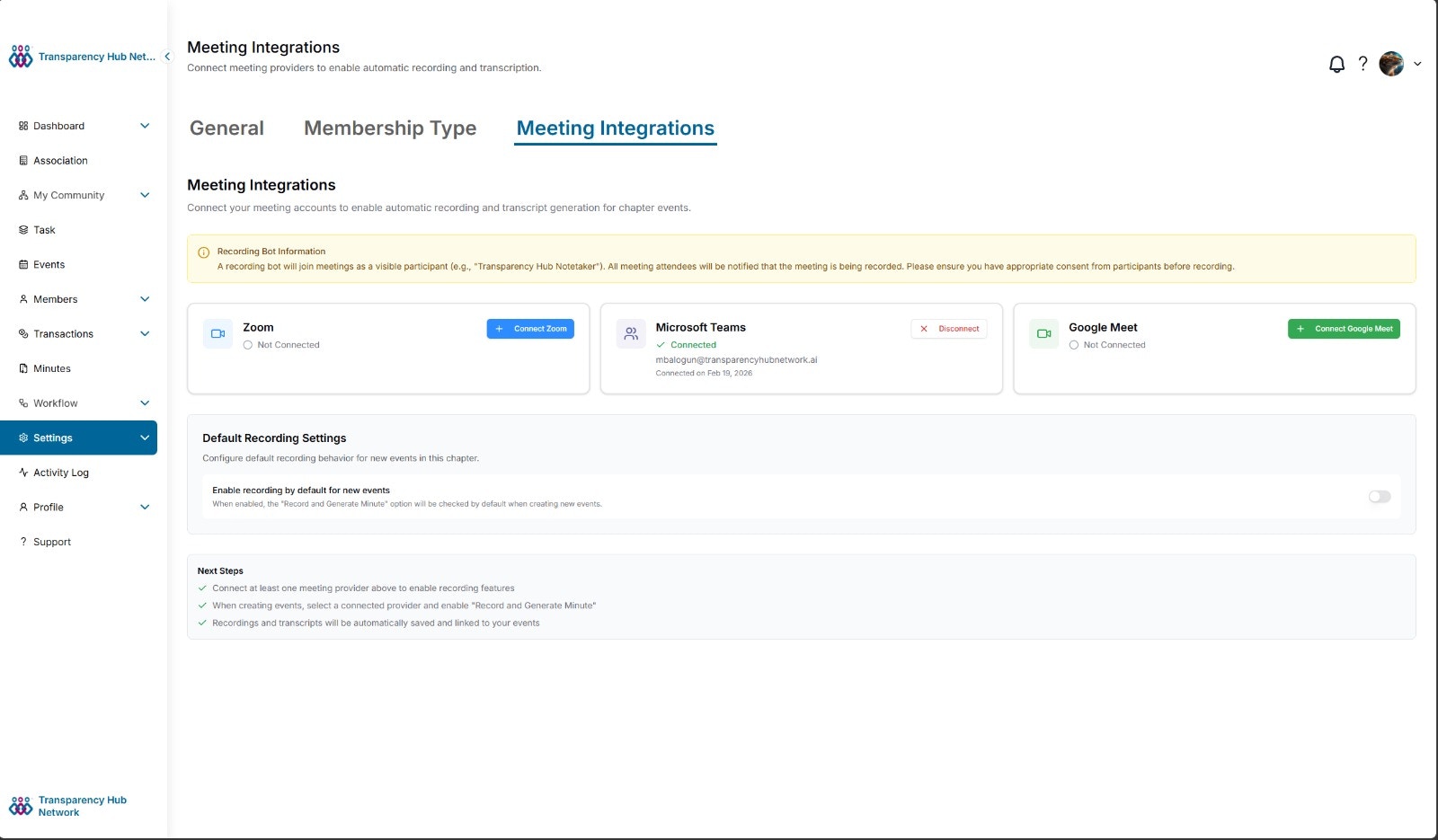 Once connected, the provider card shows your email and connection date. See [Meeting Providers](/integrations/meeting-providers) for detailed setup instructions.
When creating an event, paste a meeting link and toggle **Record and Generate Minute**. Select the connected meeting provider and a bot will be automatically scheduled to join.
Once connected, the provider card shows your email and connection date. See [Meeting Providers](/integrations/meeting-providers) for detailed setup instructions.
When creating an event, paste a meeting link and toggle **Record and Generate Minute**. Select the connected meeting provider and a bot will be automatically scheduled to join.
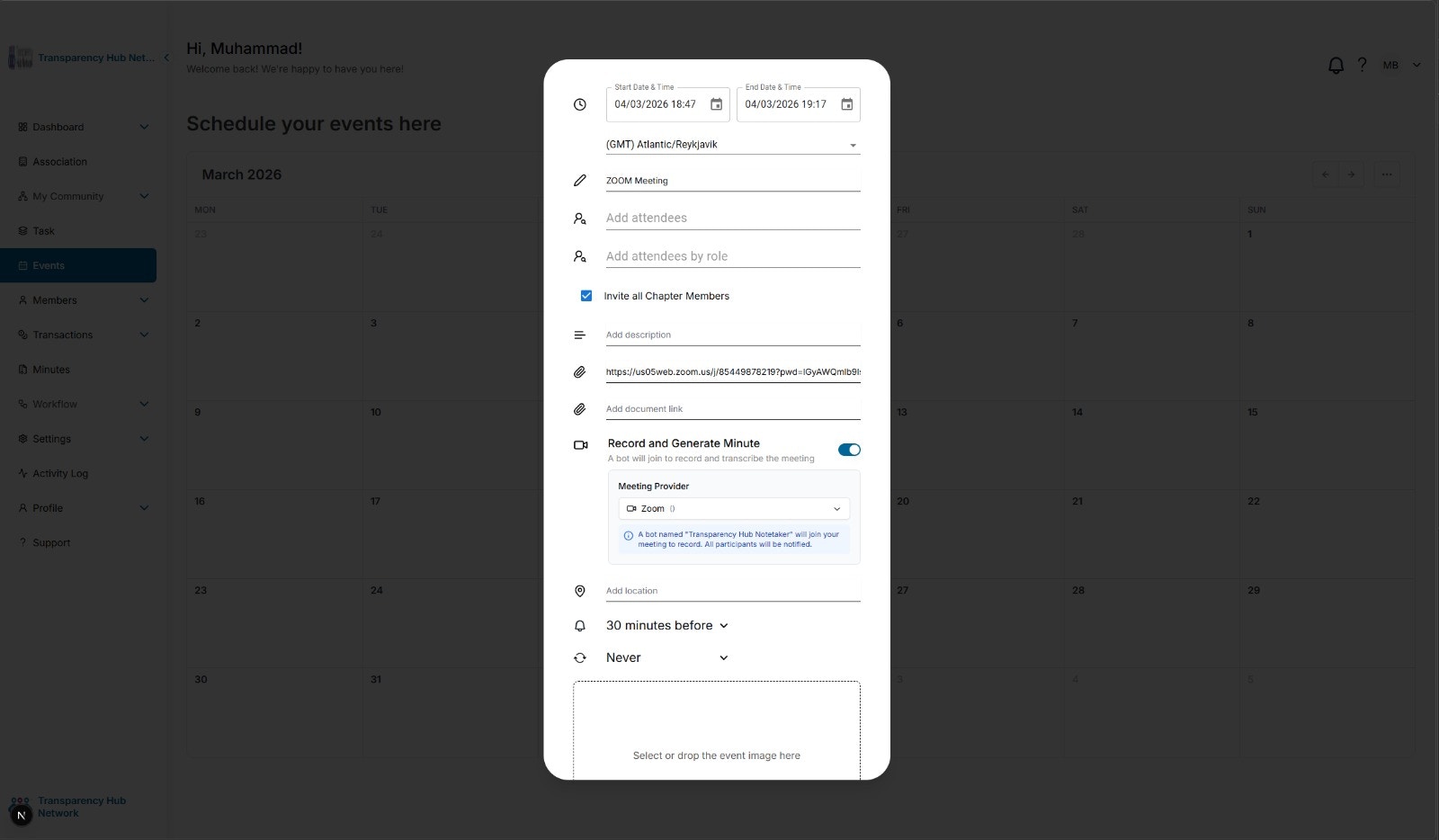 A notice confirms: *A bot named "Transparency Hub Notetaker" will join your meeting to record. All participants will be notified.*
At the scheduled time, **Transparency Hub Notetaker** joins the meeting as a participant and begins recording.
A notice confirms: *A bot named "Transparency Hub Notetaker" will join your meeting to record. All participants will be notified.*
At the scheduled time, **Transparency Hub Notetaker** joins the meeting as a participant and begins recording.
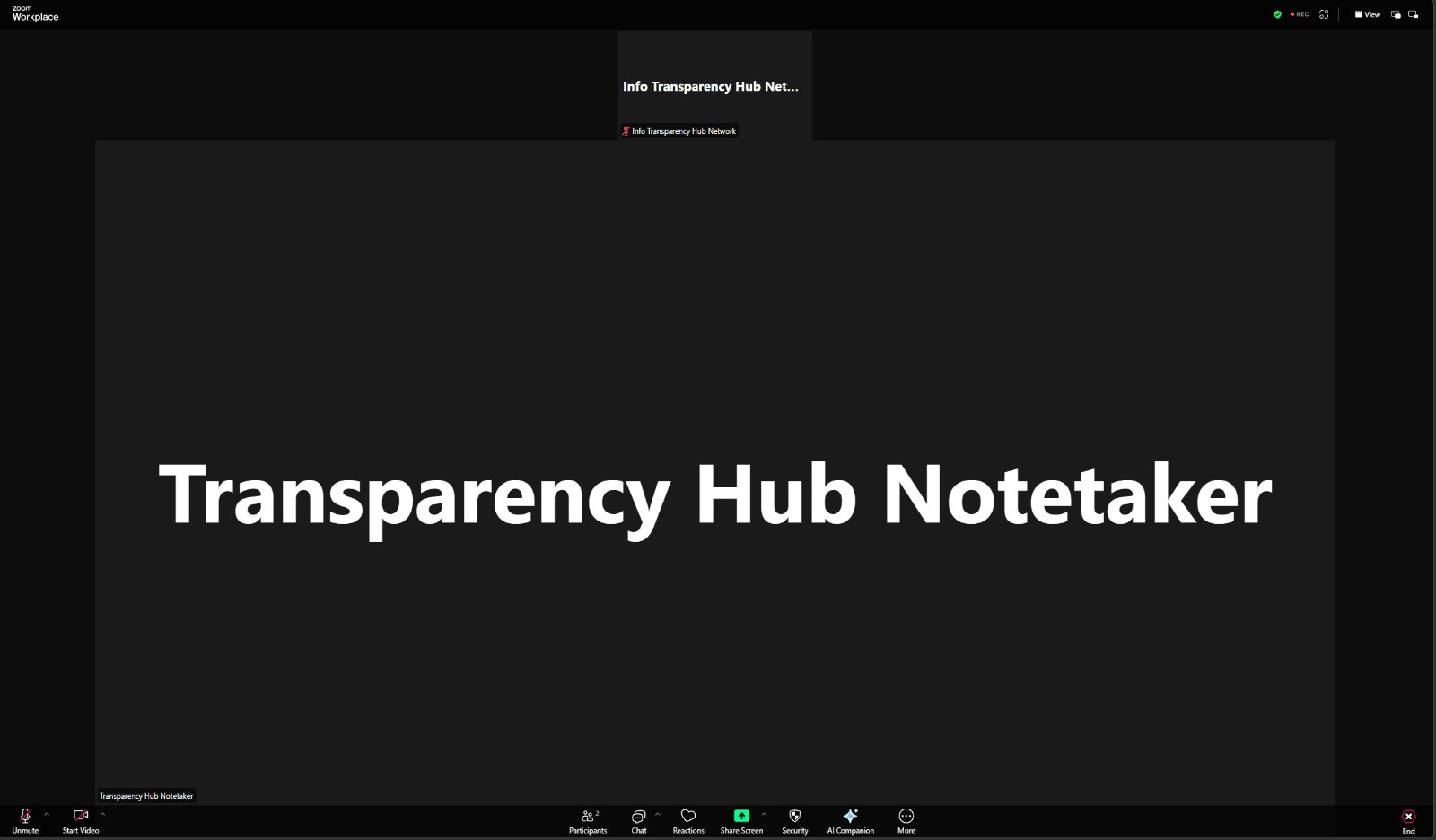 All participants will see the bot as an attendee.
After the meeting ends, the recording and transcript are processed automatically:
* Recording uploaded to **Azure Blob Storage**
* Transcript sent to **Google Gemini AI** for analysis
* AI generates structured meeting minutes
Once the minutes are generated, all association admins receive a notification that the meeting minutes are ready for review.
Minutes appear in the **Minutes** section once processing is complete (typically within 15-30 minutes). Click on a minute entry to review and edit.
## Architecture
The meeting bot system uses a multi-provider architecture to support Google Meet, Zoom, and Microsoft Teams:
All participants will see the bot as an attendee.
After the meeting ends, the recording and transcript are processed automatically:
* Recording uploaded to **Azure Blob Storage**
* Transcript sent to **Google Gemini AI** for analysis
* AI generates structured meeting minutes
Once the minutes are generated, all association admins receive a notification that the meeting minutes are ready for review.
Minutes appear in the **Minutes** section once processing is complete (typically within 15-30 minutes). Click on a minute entry to review and edit.
## Architecture
The meeting bot system uses a multi-provider architecture to support Google Meet, Zoom, and Microsoft Teams:
 **Flow:**
1. Admin creates an event with recording enabled
2. Backend schedules a bot via **Attendee.dev** (our bot service provider)
3. Bot joins the meeting at the scheduled time and records
4. After the meeting, Attendee.dev sends a **webhook** with transcript and recording URLs
5. Backend downloads and stores the recording in **Azure Blob Storage**
6. Transcript is sent to **Google Gemini AI** to generate formatted minutes
7. Minutes are saved and displayed on the event page
## Viewing Minutes
Navigate to **Minutes** in the sidebar to see all generated meeting minutes. Each entry shows:
* Title
* Date
* Adopted status
Click on an entry to view the full minutes.
## Editing Minutes
Click **Edit** on any minute entry to open the editor. The **Edit Minutes** modal provides two editable sections:
**Flow:**
1. Admin creates an event with recording enabled
2. Backend schedules a bot via **Attendee.dev** (our bot service provider)
3. Bot joins the meeting at the scheduled time and records
4. After the meeting, Attendee.dev sends a **webhook** with transcript and recording URLs
5. Backend downloads and stores the recording in **Azure Blob Storage**
6. Transcript is sent to **Google Gemini AI** to generate formatted minutes
7. Minutes are saved and displayed on the event page
## Viewing Minutes
Navigate to **Minutes** in the sidebar to see all generated meeting minutes. Each entry shows:
* Title
* Date
* Adopted status
Click on an entry to view the full minutes.
## Editing Minutes
Click **Edit** on any minute entry to open the editor. The **Edit Minutes** modal provides two editable sections:
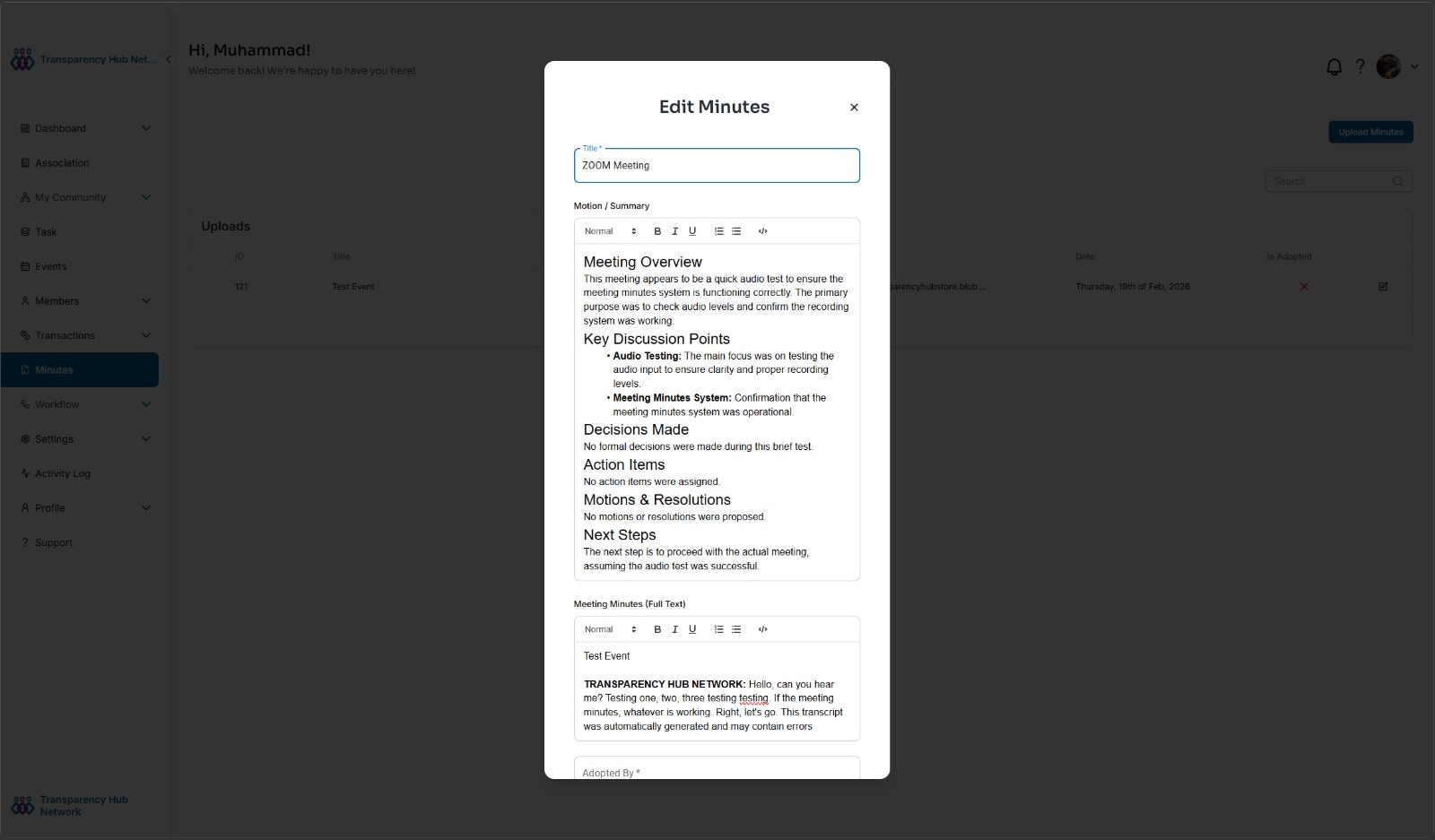 **Motion / Summary** — The AI-generated structured minutes including:
* Meeting Overview
* Key Discussion Points
* Decisions Made
* Action Items
* Motions & Resolutions
* Next Steps
**Meeting Minutes (Full Text)** — The complete transcript with speaker labels and timestamps. A notice at the bottom indicates: *This transcript was automatically generated and may contain errors.*
Both sections use the **Quill rich text editor** with formatting options:
* Text styles (Normal, Heading, etc.)
* Bold, italic, underline
* Ordered and unordered lists
* Code blocks
Review AI-generated minutes for accuracy before sharing. While the AI captures most content correctly, nuanced discussions may need manual adjustment.
## PDF Transcripts
Export meeting minutes or the full transcript as a PDF:
1. Open the meeting minutes
2. Click **Export → PDF**
3. Choose between **Minutes** (structured summary) or **Full Transcript** (verbatim)
The PDF includes the event title, date, attendees, and your association's branding.
## Supported Providers
| Provider | Bot Name | Status |
| ------------------- | -------------------------- | ----------- |
| **Google Meet** | Transparency Hub Notetaker | ✅ Supported |
| **Zoom** | Transparency Hub Notetaker | ✅ Supported |
| **Microsoft Teams** | Transparency Hub Notetaker | ✅ Supported |
## Access
All members of the association can view meeting minutes for any event. There are no restrictions — minutes are visible to every member to promote transparency.
## Disconnecting a Provider
Go to **Settings → Meeting Integrations**, click **Disconnect** on the provider card. This removes the provider connection from your chapter.
### Zoom — Full Deauthorization
When you disconnect Zoom from Transparency Hub, we automatically revoke the OAuth access token so our app no longer has access to your Zoom account. No further action is needed on your part.
If you prefer, you can also remove the app directly from your Zoom account:
Visit the [Zoom App Marketplace — Installed Apps](https://marketplace.zoom.us/user/installed) page.
Locate **Transparency Hub Network** in your list of installed apps.
Click **Remove** to fully deauthorize the app from your Zoom account.
Either method — disconnecting from Transparency Hub or removing from Zoom — fully revokes our access. When you disconnect from our app, we call Zoom's token revocation endpoint automatically. When you remove from Zoom's side, Zoom notifies us and we clean up the connection on our end.
### Google Meet & Microsoft Teams
When you disconnect Google Meet or Microsoft Teams from Transparency Hub, the stored OAuth credentials are removed from our system. You can also revoke access from your Google or Microsoft account settings:
* **Google:** Go to [Google Account → Security → Third-party apps](https://myaccount.google.com/permissions) and remove Transparency Hub Network.
* **Microsoft:** Go to [Microsoft Account → Privacy → Apps and services](https://account.live.com/consent/Manage) and remove Transparency Hub Network.
**Motion / Summary** — The AI-generated structured minutes including:
* Meeting Overview
* Key Discussion Points
* Decisions Made
* Action Items
* Motions & Resolutions
* Next Steps
**Meeting Minutes (Full Text)** — The complete transcript with speaker labels and timestamps. A notice at the bottom indicates: *This transcript was automatically generated and may contain errors.*
Both sections use the **Quill rich text editor** with formatting options:
* Text styles (Normal, Heading, etc.)
* Bold, italic, underline
* Ordered and unordered lists
* Code blocks
Review AI-generated minutes for accuracy before sharing. While the AI captures most content correctly, nuanced discussions may need manual adjustment.
## PDF Transcripts
Export meeting minutes or the full transcript as a PDF:
1. Open the meeting minutes
2. Click **Export → PDF**
3. Choose between **Minutes** (structured summary) or **Full Transcript** (verbatim)
The PDF includes the event title, date, attendees, and your association's branding.
## Supported Providers
| Provider | Bot Name | Status |
| ------------------- | -------------------------- | ----------- |
| **Google Meet** | Transparency Hub Notetaker | ✅ Supported |
| **Zoom** | Transparency Hub Notetaker | ✅ Supported |
| **Microsoft Teams** | Transparency Hub Notetaker | ✅ Supported |
## Access
All members of the association can view meeting minutes for any event. There are no restrictions — minutes are visible to every member to promote transparency.
## Disconnecting a Provider
Go to **Settings → Meeting Integrations**, click **Disconnect** on the provider card. This removes the provider connection from your chapter.
### Zoom — Full Deauthorization
When you disconnect Zoom from Transparency Hub, we automatically revoke the OAuth access token so our app no longer has access to your Zoom account. No further action is needed on your part.
If you prefer, you can also remove the app directly from your Zoom account:
Visit the [Zoom App Marketplace — Installed Apps](https://marketplace.zoom.us/user/installed) page.
Locate **Transparency Hub Network** in your list of installed apps.
Click **Remove** to fully deauthorize the app from your Zoom account.
Either method — disconnecting from Transparency Hub or removing from Zoom — fully revokes our access. When you disconnect from our app, we call Zoom's token revocation endpoint automatically. When you remove from Zoom's side, Zoom notifies us and we clean up the connection on our end.
### Google Meet & Microsoft Teams
When you disconnect Google Meet or Microsoft Teams from Transparency Hub, the stored OAuth credentials are removed from our system. You can also revoke access from your Google or Microsoft account settings:
* **Google:** Go to [Google Account → Security → Third-party apps](https://myaccount.google.com/permissions) and remove Transparency Hub Network.
* **Microsoft:** Go to [Microsoft Account → Privacy → Apps and services](https://account.live.com/consent/Manage) and remove Transparency Hub Network.