

Overview
Transparency Hub Network integrates with video conferencing platforms to automatically:- Join and record meetings via a bot (“Transparency Hub Notetaker”)
- Generate transcripts
- Create AI-powered meeting minutes
Meeting Integrations Settings
Navigate to Settings → Meeting Integrations to connect your meeting providers.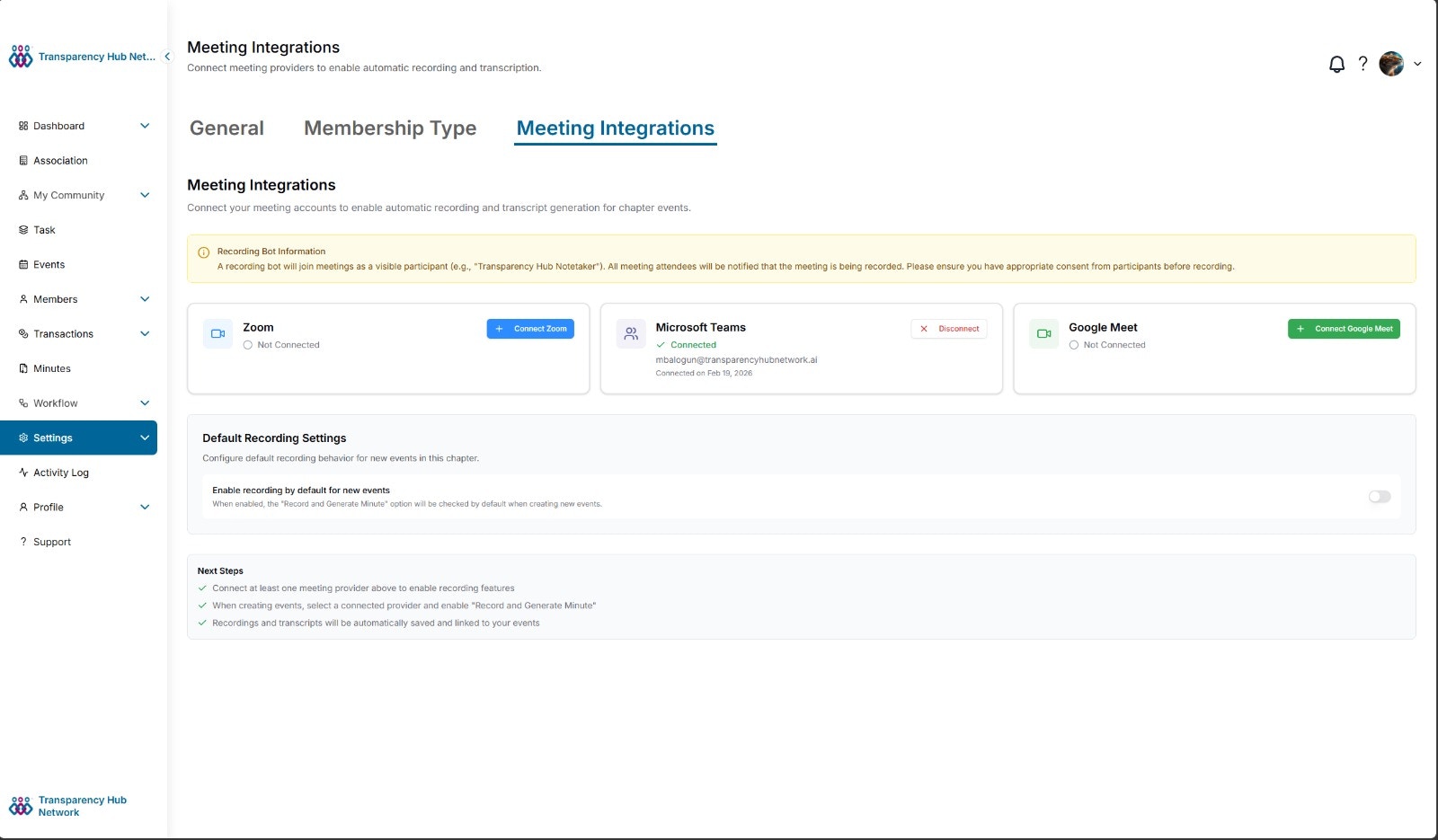
Supported Providers
Google Meet Setup
1
Navigate to Settings
Go to Settings → Meeting Integrations.
2
Connect Google Meet
Click + Connect Google Meet on the Google Meet card. You’ll be redirected to Google’s consent screen.
3
Authorize
Sign in with your Google account and grant the requested permissions.
4
Confirm
You’ll be redirected back to settings with a success confirmation. Your Google email and connection date will appear on the card.
Zoom Setup
1
Navigate to Settings
Go to Settings → Meeting Integrations.
2
Connect Zoom
Click + Connect Zoom on the Zoom card. You’ll be redirected to Zoom’s authorization page.
3
Authorize
Sign in with your Zoom account and approve access.
Zoom tokens are managed securely by our integration partner. We don’t store your Zoom credentials directly.
Microsoft Teams Setup
1
Navigate to Settings
Go to Settings → Meeting Integrations.
2
Connect Microsoft Teams
Click Connect on the Microsoft Teams card. You’ll be redirected to Microsoft’s consent screen.
3
Authorize
Sign in with your Microsoft account and approve access.
4
Confirm
Once connected, your Microsoft email and connection date will appear on the card.
Default Recording Settings
You can enable recording by default for all new events in a chapter:- Scroll to Default Recording Settings on the Meeting Integrations page
- Toggle Enable recording by default for new events
- When enabled, the “Record and Generate Minute” option will be checked by default when creating new events
How Recording Works
1
Create an Event
Create an event with a meeting link (Google Meet, Zoom, or Teams) and enable Record and Generate Minute.
2
Bot Is Scheduled
A recording bot is automatically scheduled to join the meeting at the event’s start time.
3
Bot Joins
Transparency Hub Notetaker joins the meeting as a visible participant and begins recording.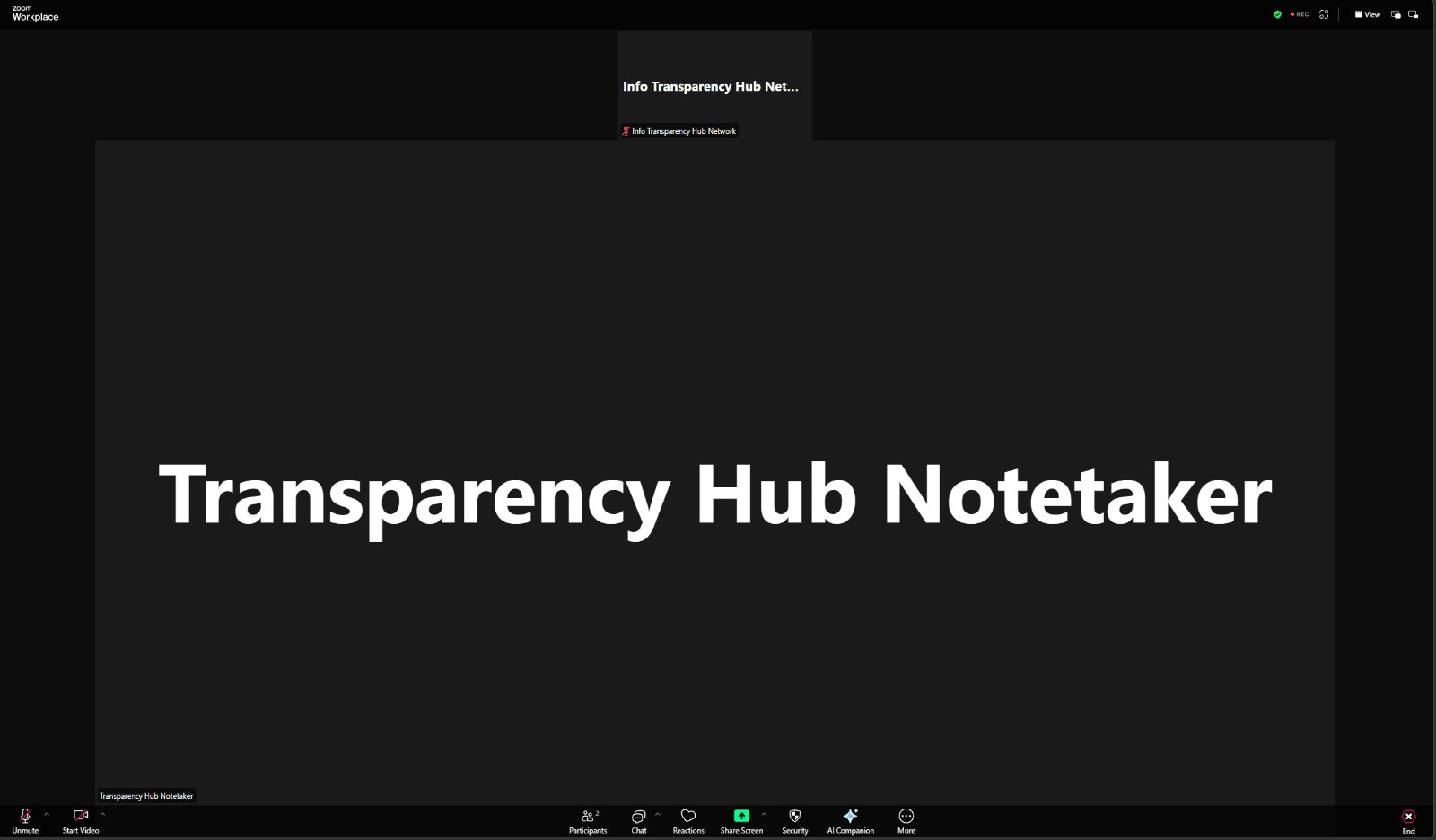
4
AI Processing
After the meeting ends, the recording and transcript are processed by AI to generate formatted meeting minutes.
5
View Minutes
Minutes appear on the event’s detail page. See Meeting Minutes for details.
Next Steps
After connecting at least one provider:- ✅ Connect at least one meeting provider to enable recording features
- ✅ When creating events, select a connected provider and enable “Record and Generate Minute”
- ✅ Recordings and transcripts will be automatically saved and linked to your events
Disconnecting a Provider
Go to Settings → Meeting Integrations, click Disconnect on the provider card. This removes the provider connection from your chapter.Zoom — Full Deauthorization
When you disconnect Zoom from Transparency Hub, we automatically revoke the OAuth access token so our app no longer has access to your Zoom account. No further action is needed on your part. If you prefer, you can also remove the app directly from your Zoom account:1
Go to Zoom Marketplace
Visit the Zoom App Marketplace — Installed Apps page.
2
Find Transparency Hub Network
Locate Transparency Hub Network in your list of installed apps.
3
Remove the App
Click Remove to fully deauthorize the app from your Zoom account.
Either method — disconnecting from Transparency Hub or removing from Zoom — fully revokes our access. When you disconnect from our app, we call Zoom’s token revocation endpoint automatically. When you remove from Zoom’s side, Zoom notifies us and we clean up the connection on our end.
Google Meet & Microsoft Teams
When you disconnect Google Meet or Microsoft Teams from Transparency Hub, the stored OAuth credentials are removed from our system. You can also revoke access from your Google or Microsoft account settings:- Google: Go to Google Account → Security → Third-party apps and remove Transparency Hub Network.
- Microsoft: Go to Microsoft Account → Privacy → Apps and services and remove Transparency Hub Network.