

Meeting Minutes
When an event is recorded, Transparency Hub Network automatically generates meeting minutes using AI — saving hours of manual note-taking.How It Works
1
Connect a Meeting Provider
First, connect at least one meeting provider. Go to Settings → Meeting Integrations and click Connect on Google Meet, Zoom, or Microsoft Teams.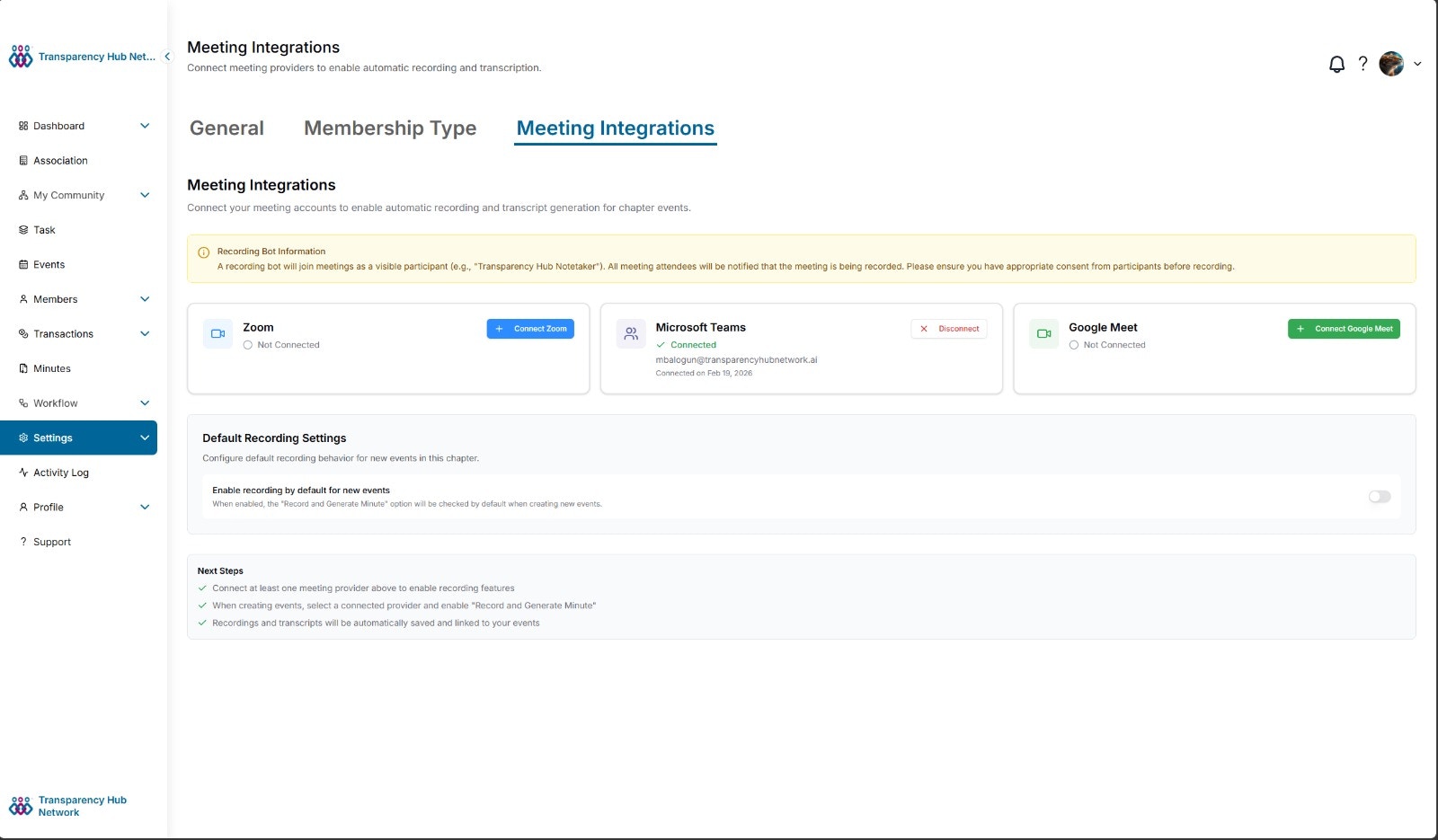
2
Schedule a Recorded Event
When creating an event, paste a meeting link and toggle Record and Generate Minute. Select the connected meeting provider and a bot will be automatically scheduled to join.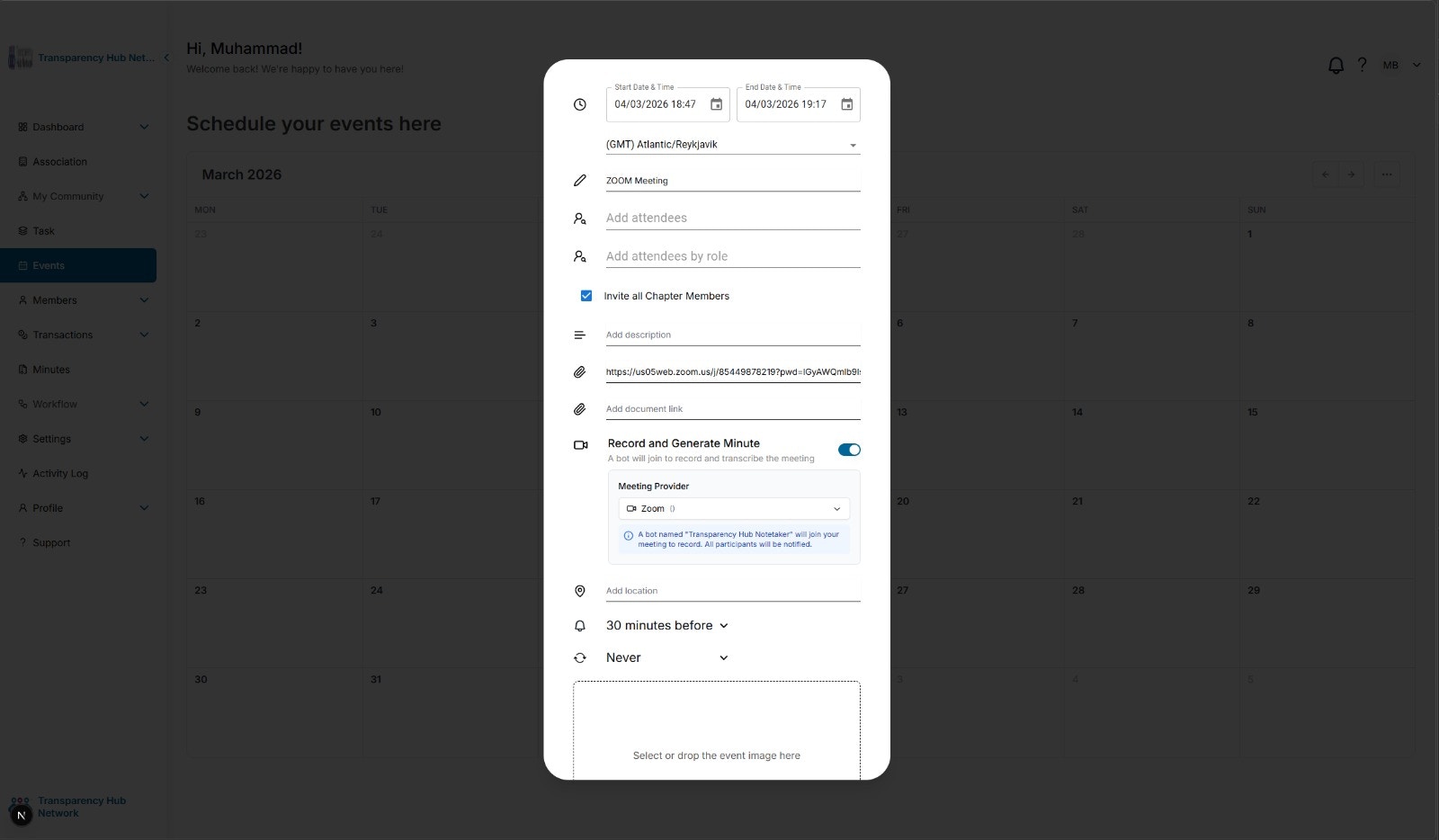
3
Bot Joins the Meeting
At the scheduled time, Transparency Hub Notetaker joins the meeting as a participant and begins recording.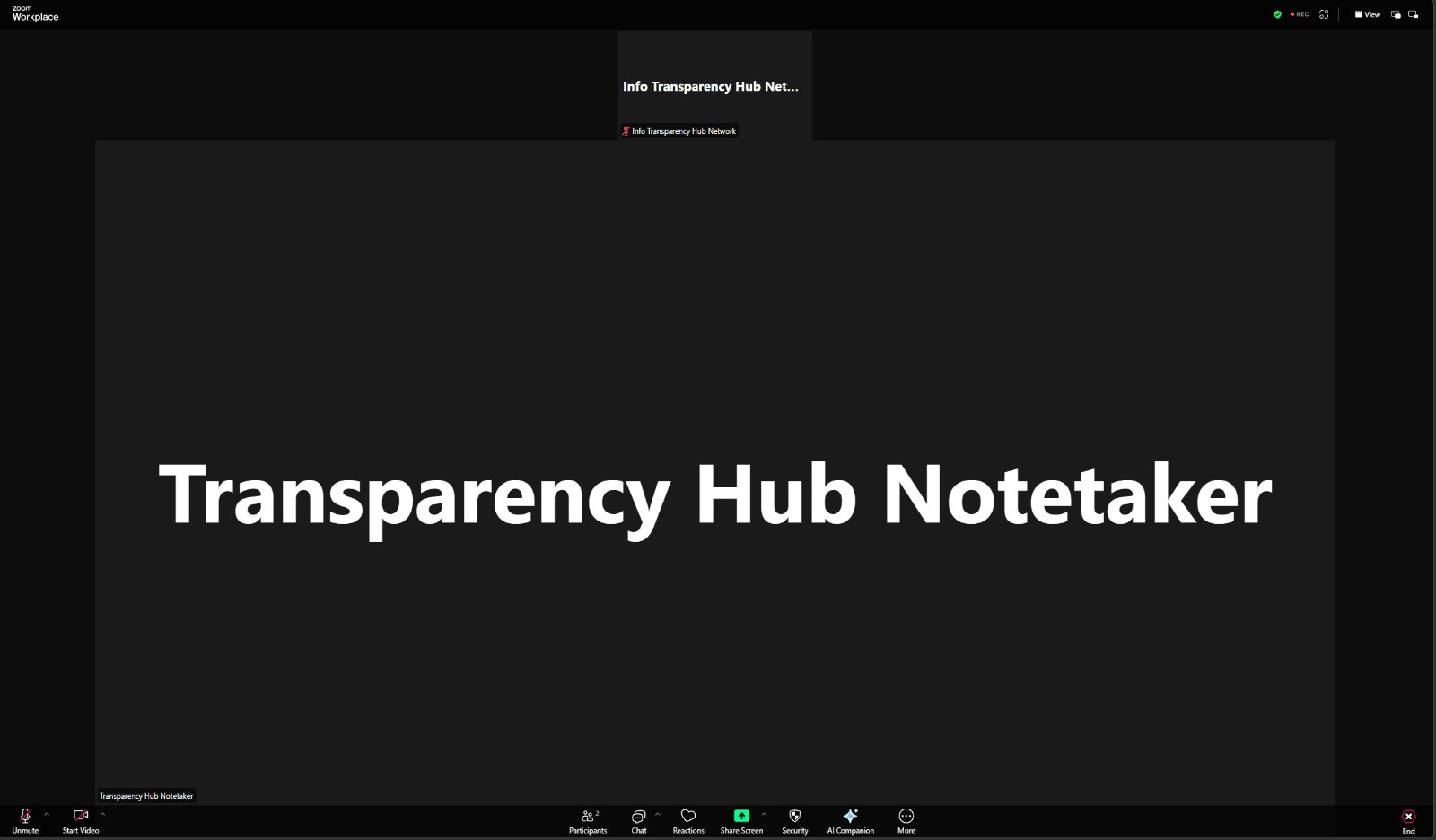
4
AI Processing
After the meeting ends, the recording and transcript are processed automatically:
- Recording uploaded to Azure Blob Storage
- Transcript sent to Google Gemini AI for analysis
- AI generates structured meeting minutes
5
Admin Notification
Once the minutes are generated, all association admins receive a notification that the meeting minutes are ready for review.
6
Review & Edit
Minutes appear in the Minutes section once processing is complete (typically within 15-30 minutes). Click on a minute entry to review and edit.
Architecture
The meeting bot system uses a multi-provider architecture to support Google Meet, Zoom, and Microsoft Teams:
- Admin creates an event with recording enabled
- Backend schedules a bot via Attendee.dev (our bot service provider)
- Bot joins the meeting at the scheduled time and records
- After the meeting, Attendee.dev sends a webhook with transcript and recording URLs
- Backend downloads and stores the recording in Azure Blob Storage
- Transcript is sent to Google Gemini AI to generate formatted minutes
- Minutes are saved and displayed on the event page
Viewing Minutes
Navigate to Minutes in the sidebar to see all generated meeting minutes. Each entry shows:- Title
- Date
- Adopted status
Editing Minutes
Click Edit on any minute entry to open the editor. The Edit Minutes modal provides two editable sections: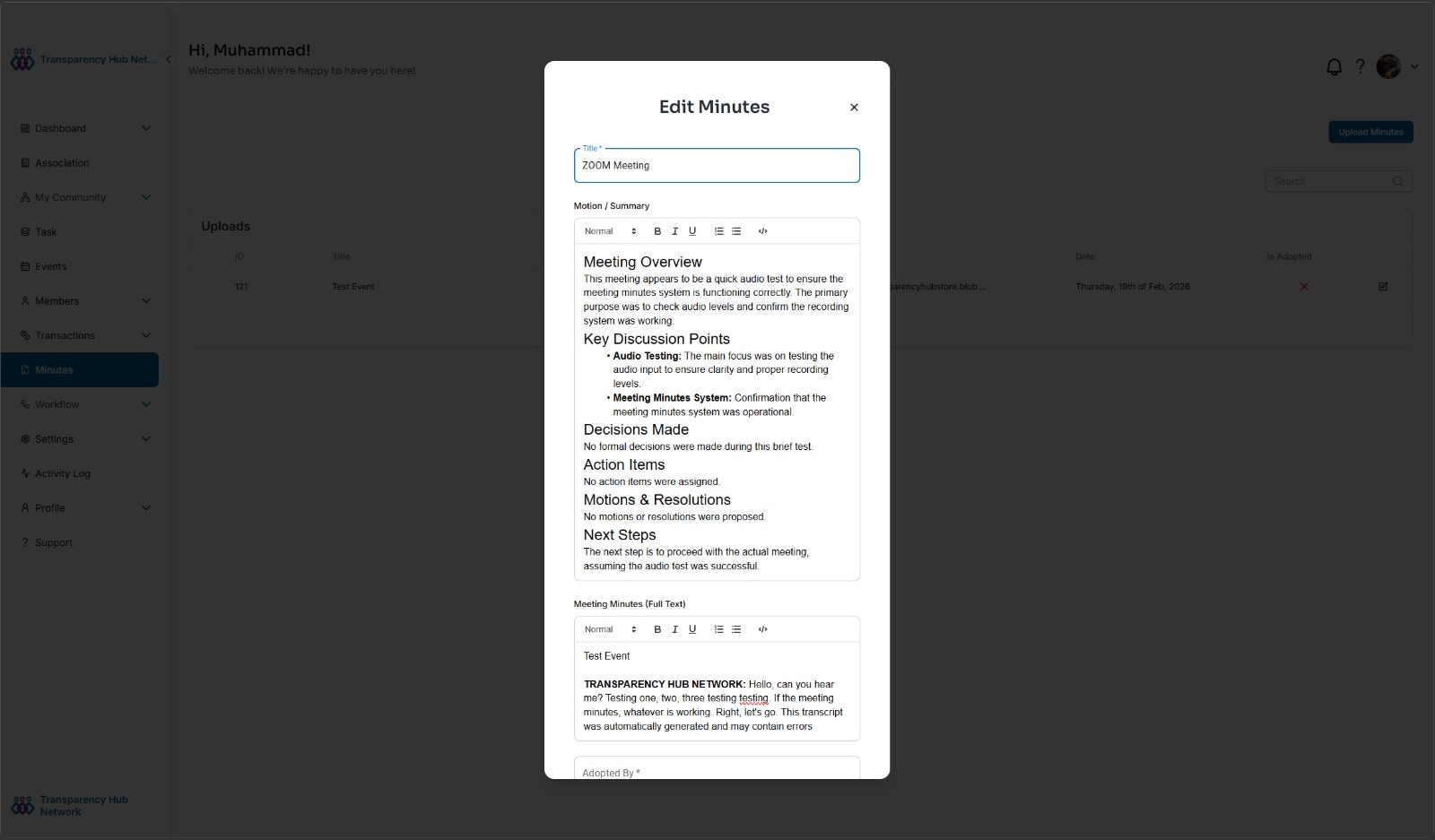
- Meeting Overview
- Key Discussion Points
- Decisions Made
- Action Items
- Motions & Resolutions
- Next Steps
- Text styles (Normal, Heading, etc.)
- Bold, italic, underline
- Ordered and unordered lists
- Code blocks
PDF Transcripts
Export meeting minutes or the full transcript as a PDF:- Open the meeting minutes
- Click Export → PDF
- Choose between Minutes (structured summary) or Full Transcript (verbatim)
Supported Providers
Access
All members of the association can view meeting minutes for any event. There are no restrictions — minutes are visible to every member to promote transparency.
Disconnecting a Provider
Go to Settings → Meeting Integrations, click Disconnect on the provider card. This removes the provider connection from your chapter.Zoom — Full Deauthorization
When you disconnect Zoom from Transparency Hub, we automatically revoke the OAuth access token so our app no longer has access to your Zoom account. No further action is needed on your part. If you prefer, you can also remove the app directly from your Zoom account:1
Go to Zoom Marketplace
Visit the Zoom App Marketplace — Installed Apps page.
2
Find Transparency Hub Network
Locate Transparency Hub Network in your list of installed apps.
3
Remove the App
Click Remove to fully deauthorize the app from your Zoom account.
Either method — disconnecting from Transparency Hub or removing from Zoom — fully revokes our access. When you disconnect from our app, we call Zoom’s token revocation endpoint automatically. When you remove from Zoom’s side, Zoom notifies us and we clean up the connection on our end.
Google Meet & Microsoft Teams
When you disconnect Google Meet or Microsoft Teams from Transparency Hub, the stored OAuth credentials are removed from our system. You can also revoke access from your Google or Microsoft account settings:- Google: Go to Google Account → Security → Third-party apps and remove Transparency Hub Network.
- Microsoft: Go to Microsoft Account → Privacy → Apps and services and remove Transparency Hub Network.